
How it works
During your first connection to the cluster via a terminal, a giant QR Code will be displayed in your window. If the QR code looks distorted or too big, try reducing your terminal’s font size. You only need to scan it once with an authenticator app on your smartphone (such as Google Authenticator, Microsoft Authenticator, Bitwarden, etc.) to save it. The app will then display a code that you need to enter into the terminal. If no code appears, simply close the app and reopen it.
For your future connections, the server will ask for your usual SSH key AND the 6-digit verification code generated by your phone (open the app to see the code, and keep in mind that it changes after a short period of time).
I do not have a smartphone
Install a password manager or authenticator extension (such as Authenticator, Bitwarden, or 1Password) in your web browser.
Click on the extension.
Add an account by pasting the text-based secret key displayed alongside the QR code in your terminal. The extension will generate the 6-digit code directly in your browser with a simple click (or even via automatic copy-paste).
For your future connections, just reopen the extension to display your verification code.
I have a new smartphone
It is recommended to link your codes to an account—for example, a Google account with Google Authenticator—which allows you to easily transfer a code to a new device (in the app, see the top-left menu).
I no longer have access to my verification codes
If you no longer have access to your two-factor authentication app, please contact us.
FileZilla
Important: if you still have issues using FileZilla, other software like WinSCP (for Windows) or Cyberduck (Mac) offer a more straightforward way to handle two-factor authentication.
In the FileZilla main menu: Edit > Settings.
In the left column, expand Connection and click on SFTP.
Click the “Add keyfile…” button. Select your private key (your id_rsa or id_ed25519 file located in ~/.ssh). If FileZilla asks to convert it to the .ppk format, accept and save it.
Click OK.
Go to File > Site Manager.
Create a New site if you don’t have one for azzurra yet, then fill it out as follows:
You need to enter your azzurra username in the User field, and most importantly, select Interactive for the Logon Type.
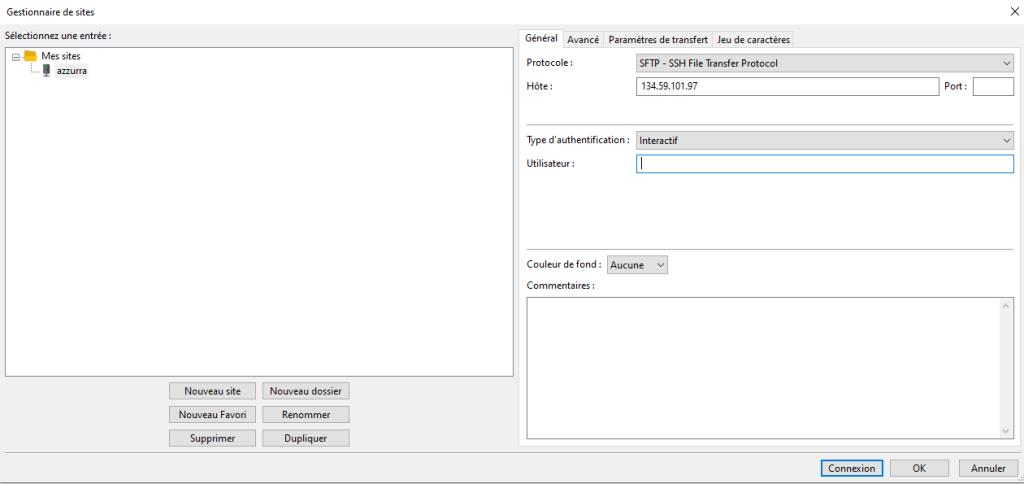
Then, when you connect, you will need to enter the passphrase associated with your SSH key (if there is), followed by the verification code displayed on your phone.
If you get a “No more authentication methods available” error, go back to File > Site Manager, and in the “Transfer Settings” tab, make sure the “Limit number of simultaneous connections” box is checked and strictly set to 1:
