
How to connect to Azzurra
Your credentials are sent to you by e-mail.
You can connect from your office (provided that you send us your institutional IP address) or remotely via a VPN whose name is given in the e-mail including your credentials.
SSH key
Password authentication is disabled. Only SSH keys are allowed.
CLICK HERE FOR ANY QUESTION ABOUT SSH KEYS
Double authentication
CLICK HERE FOR ANY QUESTION ABOUT DOUBLE AUTHENTICATION.
From your office at the university, on the wired network
To connect, you must have an ssh client on your machine:
- For Windows, you can use PuTTY and enter login-hpc.univ-cotedazur.fr as hostname and port: 22 (SSH). Then, enter your Azzurra credentials in the new terminal.
- For Linux and Unix-like (MacOS), you can use the native client provided with the OS and use the following command: ssh user_name@login-hpc.univ-cotedazur.fr (replace by the appropriate value, received by e-mail)
VPN
To connect to Azzurra via VPN, you must use the Cisco Secure Client, that you can download on this link. Your VPN credentials are your UniCA username followed by @hpc and your UniCA password. Example: john@hpc
To connect to the VPN, enter in the Cisco Secure Client: open.unice.fr
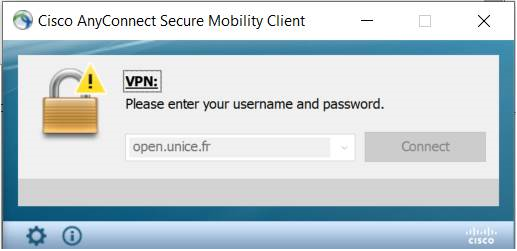
Then, in the « Username » field, type in your unice username followed by @hpc and in the Password field, type in your unice password:
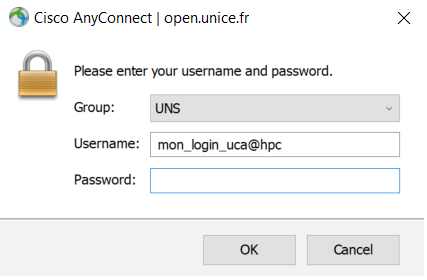
Important: use your UniCA credentials in order to connect to the VPN, not your Azzurra credentials.
Once the VPN connection is established, open a terminal (if you use Linux or Mac) and enter: ssh my_azzurra_login@login-hpc.univ-cotedazur.fr (replace by the appropriate value, received by e-mail).
If you’re under Windows, you can use PuTTY and enter as hostname, the machine name you received by e-mail and port: 22 (SSH). Then, enter your Azzurra credentials in the new terminal.
From another server
Connecting to Azzurra is possible from some Université Côte d’Azur servers (upon request).
If you are working on a server and want to connect to Azzurra from it, you must use SSH agent forwarding. This means adding the -A option when connecting to the first server. Example:
ssh -A username@my-server.univ-cotedazur.fr
Windows users can use PuTTY and click SSH > Auth > Allow agent forwarding then save and open the session.
Via an SSH Bastion
Connection to Azzurra is possible through specific SSH bastions (upon request).
An SSH bastion is a secure server that acts as an entry point to access other machines on a private network from the outside via a jump host. Example:
ssh -J bastionxx.unice.fr username@login-hpc.univ-cotedazur.fr
Your working environment
The cluster is currently running on Rocky 9.5. The essential Linux commands can been seen by clicking here.
Each user has, in addition to their folder in /home, their own workspace, accessible in /workspace/$USER
- /home/$USER: do not store your files in this directory.
- /workspace/$USER: this is where you should store your files, or in the shared workspace for your project (read below).
Users of the same group are also granted access to a shared directory into /workspace/group_name. To know which group(s) you belong to, use the groups command.
There is no storage limit for the /workspace folder. However, you are asked to store only the files that are useful for your computations. Files that are not used anymore must be transferred to your own storage systems.
Important: the center does not make any backup of your data.
Two text editors are available on the cluster: nano and vim.
Transfer files between Azzurra and your computer or a server
You can use software like WinSCP (Windows) or Cyberduck (Mac) to transfer your files.
Using FileZilla
To transfer your files from your computer to Azzurra, you can use FileZilla: https://filezilla-project.org/download.php?type=client
Once FileZilla is installed, make sure you are connected to an authorized network (your office’s or the dedicated VPN) and fill in the fields in FileZilla as follows:
Host: login-hpc.univ-cotedazur.fr
Username:  your azzurra username
Port: 22
If you use Windows, you need to do the following in order to make your SSH key work with FileZilla:
1/ Follow this procedure to create a .ppk file: https://www.simplified.guide/putty/convert-ssh-key-to-ppk
2/ In the FileZilla main menu: Edit > Settings. In the left column, expand Connection and click on SFTP. Click the “Add keyfile…” button. Select your private key (the .ppk format file created in step 1), then accept and save it. Click OK.
3/ File > Site manager > Create new site (you can name it “Azzurra”) > Pick SFTP as protocol, Host: login-hpc.univ-cotedazur.fr Port: 22, Authentication type: interactive, User: your Azzurra username.
Then you’ll be able to connect by clicking on the arrow attached with the “Open site manager” button (at the top left corner, under “File”).
Using rsync
rsync is a standard command line tool on Linux. In particular, it allows incremental synchronization, which is practical for transferring large data, and uses a protocol other than FTP / SFTP. See more information on this link.
Here is an example of a command you can run from a terminal on your personal computer to transfer data to the cluster:
rsync -a --progress path_on_local_machine/ username@login-hpc.univ-cotedazur.fr:path_to_azzurra_folder/On Azzurra, from the login-hpc node, you can initiate transfers both from Azzurra to another machine and from another machine to Azzurra. Simply adapt the rsync command, which always follows the format: rsync {SOURCE} {DESTINATION}. You can therefore transfer data to or from a server, provided that login-hpc.univ-cotedazur.fr has been authorized to connect to the other server (this must be requested from the administrator of the other server).
Example: Transferring from another server to Azzurra. The following command must be initiated on login-hpc:
nohup rsync -avP -e "ssh -o BatchMode=yes" user@serveur.unice.fr:/home/user/data /workspace/toto/test > /workspace/toto/logtest.log 2>&1 &In this example:
- The user is connected to login-hpc (Azzurra).
- They are launching a transfer from serveur.unice.fr, where their username is
user. - The source is the folder (or file)
/home/user/dataon the external server. - The destination is the folder
/workspace/toto/teston Azzurra. - Logs: Transfer logs are written to
/workspace/toto/logtest.log(refer to this file to check if the transfer succeeded). - Persistence: The
nohupcommand allows you to close your user session on Azzurra without worry; if the transfer is long, it will continue running in the background.
Via a bastion host
Local -> Remote:
rsync -avz -e "ssh -J username@bastionxx.unice.fr" /path/to/local/my_folder/ username@login-hpc.univ-cotedazur.fr:/path/to/remote/
Remote -> Local:
rsync -avz -e "ssh -J username@bastionxx.unice.fr" username@login-hpc.univ-cotedazur.fr:/path/to/remote/my_folder/ /path/to/local/
Note: Replace bastionxx.unice.fr with the address of your bastion / gateway.
You can also configure the jump transparently in your local SSH configuration file.
Open (or create) the ~/.ssh/config file on your local machine and add the following lines:
Host bastionxx.unice.fr
    User your_bastion_username

Host azzurra
    HostName login-hpc.univ-cotedazur.fr
    User your_azzurra_username
    ProxyJump bastionxx.unice.fr
Note: Replace bastionxx.unice.fr with the address of your bastion / gateway.
Then, to transfer files, simply run:
rsync -avz /path/to/local/my_folder/ azzurra:/path/to/remote